Connect Salla, noon, Amazon, Trendyol, eXtra and Komrz, and run them all from one account.
Connect a store in minutes from the Linking page
Orders, products and stock from every store, side by side
Your stores refresh automatically every 15 minutes
How it works
The seller connects each store once from the Linking page, in a few steps or through the store's own approval screen. From then on, orders, products and stock from all their stores appear inside our system and refresh automatically every 15 minutes.
Why it matters: A seller on several stores opens a dashboard for each one every day, each with its own layout and password. One account saves that time and shows the whole business at once.
Included in:BasicPlusIntelligenceAgency / Enterprise
All your sales. One look.
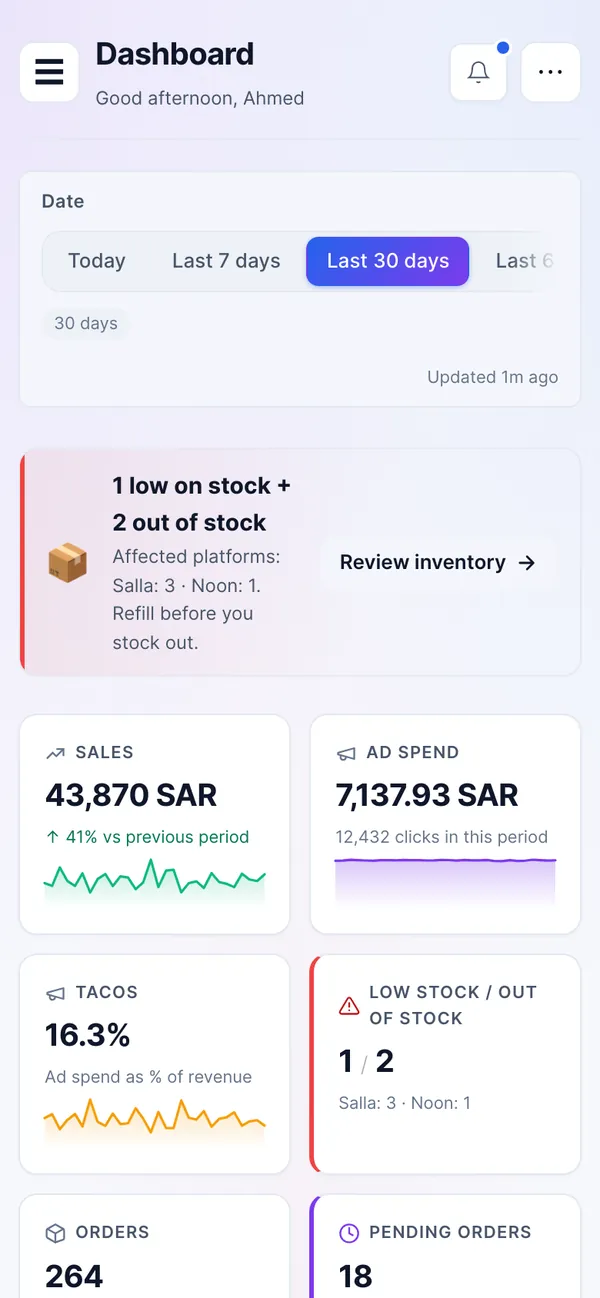
A Dashboard that shows the whole picture
Sales, orders and top products across every store, compared with the period before.
Your key numbers up top: sales and orders
Trends against the previous period
Best sellers, and where orders stand (pending, shipped, delivered)
How it works
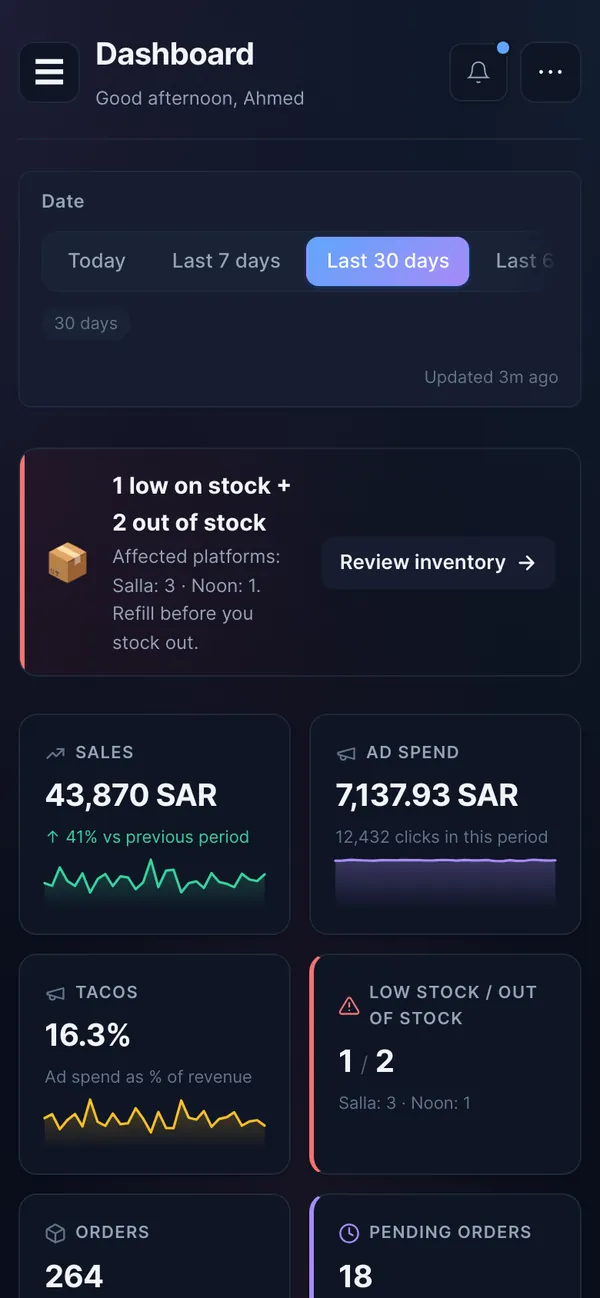
The first page after login: big numbers for sales and orders, charts against the previous period, sales by store, best-selling products, orders by status, and low- and out-of-stock alerts. The seller picks the period: today, 7, 30, 60 or 90 days, or their own dates.
Why it matters: It answers "how is my business doing?" in seconds, for all stores together, without downloading reports from each marketplace.
Where in the system: Dashboard
Included in:Every plan
Stop opening five tabs.
Every order in one list
Orders from all your stores in one list, filtered by store, status and date.
Filter by store, status or date
Search by order number or product
Export your orders to a CSV file
How it works
Every order from every store in one table. The seller filters by store, status or date, searches by order number or product, and downloads the list as a CSV file that opens in Excel.
Why it matters: No more switching between dashboards to find one order or to count today's orders.
Included in:BasicPlusIntelligenceAgency / Enterprise
Create a product once, publish it to every store
Golden feature
Write it once. AI prepares it for every store.
Create once, publish to every store, with AI
Create a product once and publish it to Salla, noon, Amazon and Trendyol, or copy the products you already sell to your other stores. AI writes the details each store asks for.
Create a product once and publish it to all your stores
AI writes the title, description and the details each store asks for
Start from a description, a file or a product page link
Copy products you sell on Salla, noon or Trendyol to your other stores, Amazon included
Every product is checked before it is published, and stock stays at zero until you approve
How it works
The List & edit products page creates a new product on Salla, noon, Amazon and Trendyol from one place. The seller adds the basics, and AI helps write the title, description and the details each marketplace asks for. Before publishing, our system checks the product, and the new product's stock stays at zero until the seller approves.
Why it matters: Every marketplace has its own long form and rules, and filling them one by one is slow. One page with AI help is much faster.
Included in:BasicPlusIntelligenceAgency / Enterprise
Stock
app.nourasky.com
Change stock once. Every store updates.
Stock in sync on every store
Set a product's quantity in one place, and our system sends it to every store.
Works with sizes and colours (variants)
Supports noon's multiple warehouses
Warns you when a store shows a different number than yours
How it works
The Inventory page shows every product and its quantity on each store. The seller changes a number once and our system sends it to the stores. It handles sizes and colours and noon's several warehouses, and warns when a store shows a different number than the one the seller set.
Why it matters: The biggest pain for multi-store sellers: an item sells out on one store but still shows on another, so an order arrives that can't be shipped, then a cancellation and sometimes a penalty. Stock sync helps avoid that.
Included in:BasicPlusIntelligenceAgency / Enterprise
One stock. Every store shows it.
Total share: one stock for every store
Set one total per product that every store shows; an order on any store lowers it on all of them.
An order on any store lowers the total everywhere
A return raises it again
Switch between Split stock and Total share any time
How it works
A choice at the top of the Inventory page called "Stock method". With Split stock, the seller divides each product's quantity between their stores. With Total share, they set one total that every store shows; when an order comes in on any store, our system lowers the number on all of them, and a return raises it.
Why it matters: Made for sellers with one warehouse who sell the same items everywhere: no guessing how many units to give each store.
Where in the system: Inventory page → Stock method
Included in:BasicPlusIntelligenceAgency / Enterprise
Same product, five stores — linked automatically.
AI that links your products
AI finds the same product across your stores and links it, in Arabic and English.
Reads product names in Arabic and English
Uses codes, barcodes and product details
You can review and change any link
How it works
The same product often has a different name and code on each store — an Arabic name on Salla, an English one on Amazon. Our system's AI reads names, codes, barcodes and details and links the listings that are the same product, so stock and sales are counted per real product. The seller can review and change any link.
Why it matters: Linking hundreds of products by hand takes days. The AI does most of the work, so stock sync can start sooner.
Where in the system: Inventory page (the linking list)
Included in:BasicPlusIntelligenceAgency / Enterprise
Prices and offers
app.nourasky.com
Know what you really earn before you change a price.
Prices from one screen — and what you really earn
Change prices on Salla, noon, Trendyol and Amazon from one screen, and see your revenue after the platform's fees.
One screen for all your store prices
Revenue after platform fees next to every price
Compare what each store leaves you
How it works
From the Products page the seller changes a price on Salla, noon, Trendyol or Amazon without opening each store. Next to the price, our system shows the "revenue after fees": what is left from the sale after the platform's commission and fees.
Why it matters: Every marketplace takes a different cut, and many sellers price by feel. Seeing what they actually receive helps them price with confidence.
Where in the system: Products page → Set Price window
Included in:BasicPlusIntelligenceAgency / Enterprise
Set your sale price today. It goes live on time.
Scheduled prices
Pick the new price, the date and the hour (Riyadh time); the price changes on its own and returns to the original when the offer ends.
Prepare White Friday, Ramadan and Eid offers ahead of time
Several steps: a lower price, then back to the original
A notification if a step could not be applied
How it works
In the Set Price window, the Schedule tab («جدولة») plans price changes ahead: a new price, a date and an hour (Riyadh time). The last step returns to the original price unless the seller changes it, and each step shows the revenue after fees at that price. If a step can't be applied, the seller gets a notification.
Why it matters: The offer starts at midnight and ends on time — no staying up to change prices on five stores for White Friday, Ramadan or Eid.
Where in the system: Products page → Set Price window → Schedule
Included in:BasicPlusIntelligenceAgency / Enterprise
Finance
app.nourasky.com
Sales aren't what you keep. Now you know what is.
Money summary: what you keep after fees and ads
How much of what you sold you keep, and where the rest goes — every store on one page.
Sales, platform fees, ad spend and what's left, for any date range
A money-flow chart and a cost breakdown by store and by ad platform
A table per store: the fee %, and whether it is the marketplace's actual figure or our system's estimate
How it works
At the top of the Finance page, the Money summary adds up the sales of every connected store and subtracts each marketplace's fees and the spend of every connected ad account (on plans that include ads). It shows what's left as an amount and as a share of sales, with a money-flow chart, a cost breakdown and a table per store. Filter by date (today up to 90 days, or a custom range) and by store. It does not include the cost of the products.
Why it matters: Sales figures look good; what matters is what actually reaches the seller. Fees and ads differ from one marketplace to the next, so sellers rarely see the full picture across their stores without a spreadsheet.
What each marketplace will transfer to you, and when — read directly from the marketplaces.
Upcoming transfers from Amazon, noon, Trendyol and eXtra on one page
Amounts and dates read directly from each marketplace
A note when a store's connection needs to be reconnected
How it works
The Payouts page shows what each marketplace will transfer to the seller and when: upcoming transfers, amounts waiting and recent transfers, read directly from Amazon, noon, Trendyol and eXtra.
Why it matters: Cash flow matters. Sellers usually log in to each marketplace to see when money arrives; here it is on one page.
Included in:BasicPlusIntelligenceAgency / Enterprise
Ads analytics
app.nourasky.com
Five ad platforms. One report.
All your ads in one view
Amazon Ads, TikTok, Meta, Google Ads and Snapchat together: every campaign's spend and what each platform reports about it, from today to the last 90 days.
Total spend across 5 platforms, and each platform's share
Every campaign side by side: spend, clicks, impressions and CTR
Sales from ads and ACOS where the platform reports real purchases: Amazon Ads and Meta
Sales each platform claims are never added together, so one order isn't counted twice
Alerts when spend or ACOS crosses the limit you set
How it works
For sellers who advertise, the All Ads page brings Amazon Ads, TikTok, Meta (Facebook and Instagram), Google Ads and Snapchat together: total spend and each platform's share, then every campaign with its spend, clicks, impressions and CTR, for today, the last 7, 30, 60 or 90 days, or dates you pick. Sales from ads and ACOS appear where the platform reports real purchases (Amazon Ads and Meta); TikTok and Google show conversions, and Snapchat shows spend and impressions. Each platform also has its own page, with keywords for Google, placements for Meta and a day-by-day chart. Alerts tell you when spend or ACOS crosses a limit you choose.
Why it matters: Most sellers can't tell which ad platform is worth the money, because each one shows its own report. One view makes the comparison easy. Each platform also counts its own sales from ads, so two platforms can claim the same order.
Where in the system: All Ads page, one page per ad platform, and alerts in Settings
Included in:AdsPlusIntelligenceAgency / Enterprise
What your ads really cost your business.
Ad spend against your real sales (TACOS)
The Dashboard divides all your ad spend by the real sales of every store you connect, so you see what advertising costs against your whole business, not only against the sales an ad platform claims.
TACOS: total ad spend as a share of your total store sales
Counts every sale, from ads or not, so organic sales are part of the picture
A warning when ads take more than 30% of your sales
Ad spend, sales, orders and TACOS on one chart, against the period before
In the Money summary, ad spend comes off your sales after the platforms' fees
How it works
Ad platforms report the sales they link to their ads, and two platforms can claim the same order. TACOS doesn't depend on those claims: it divides your ad spend across every connected ad platform by the real sales of your connected stores over the same dates. The Dashboard shows it as a card and on the trends chart, and warns you when ads take more than 30% of your sales. The Money summary then takes your ad spend off your sales, after the platforms' fees, and counts the ad charges a marketplace takes inside its own statement too, to show what's left.
Why it matters: A campaign can look profitable in its own report while your ads cost too much against the whole business. Ad spend against real sales shows what advertising really costs you.
Where in the system: Dashboard (TACOS card, trends chart and insights) and Finance → Money summary
Every week and every month, AI sums up how your stores did, why, and what to do next — in Arabic or English.
An executive summary and the main performance drivers
A stock-out forecast and risks worth watching
Next actions in priority order, emailed with a PDF
How it works
Every week and every month, AI writes a short report on the seller's business: what happened and why, which products may run out, risks worth watching, and the next steps in order of priority. It arrives by email with a PDF, in Arabic or English.
Why it matters: Like having an analyst read the numbers for you — useful for busy owners with no time to study charts.
Where in the system: AI Reports page, and email
Included in:PlusIntelligenceAgency / Enterprise
Alerts and notifications
Know first. Act fast.
Smart alerts: in the app, by email and on WhatsApp
Alerts for new orders, low or out of stock, ad spend or ACOS over your limit, and a store that stopped updating.
In the app on every plan, by email, and on WhatsApp from Plus
Ad spend and ACOS limits you set, checked every hour
Each person chooses which alerts reach them, and where
On busy days, extra order and stock alerts come as one summary an hour
A store connection that needs attention shows in the app, and our team is told at once
How it works
Our system tells the seller when something needs attention: a new order or a change in its status, low or no stock, ad spend or ACOS over a limit they set, a scheduled price that couldn't be applied, a product they listed going live or needing attention, their AI report being ready, and billing notices. Every alert shows in the app, on every plan, and the important ones also arrive by email. On Plus and higher, alerts can reach WhatsApp too, and Intelligence adds every alert type on every channel, low stock and order status included. Each person chooses what reaches them and where. On a busy day, past 5 order or stock alerts in an hour, the rest come as one summary an hour, while the app still lists every one. Billing notices never go to WhatsApp.
Why it matters: Problems get fixed before they cost the seller sales, and a busy day doesn't bury the alert that matters.
Where in the system: The bell, and Settings → Notifications (ad limits: Settings → Ad alerts)
Included in:Every plan
Team, language and support
Give your team access — not your passwords.
Your team, with the right access
Invite your team and choose what each person can do: admin, member or viewer.
Three roles: admin, member, viewer
Invite your team with an email link
No need to share your store passwords
How it works
The account owner invites their team with an email link and gives each person a role: admin (full control), member (daily work) or viewer (look only). Store passwords are never shared.
Why it matters: Growing sellers work with staff or an agency, and roles keep the account safe.
Where in the system: Settings → Team
Included in:Every plan
Built for Saudi sellers.
Arabic and English — on your phone too
Full Arabic and English, amounts in riyals, and it works in your phone's browser.
Full right-to-left Arabic, and English
Amounts in Saudi riyals (SAR)
On phone, tablet and computer
How it works
The whole platform works in Arabic (right to left) and English, switched with one tap. Amounts are in Saudi riyals, and it works in the browser of any phone, tablet or computer.
Why it matters: Built for Saudi sellers from the start — not a translation added later.
Where in the system: The EN / عربي button at the top of every page
Included in:Every plan
We set it up with you — for free.
A free setup session, and ongoing support
Every subscriber gets a free online setup session, and our team helps by email.
A free one-to-one setup session
Email: support@nourasky.com
How it works
Every new subscriber can book a free online setup session in which our team walks them through the platform using their own stores. After that, support is there by email.
Why it matters: Getting started is easy, and help is one message away.
Where in the system: Help & Support page
Included in:Every plan
Coming soon
We are building and testing these. They are not available yet.
Manage your ads from our systemEdit, pause and create campaigns without leaving your account.
Search improvements for your storeSuggestions to improve your product titles and descriptions for search, applied only after you approve them.
Create orders on SallaAdd an order to your Salla store from our system.
ZidOur app for Zid stores is in review.
ShopifyConnect your Shopify store.
See it with your own eyes
Explore the live demo with sample data, or start your 7-day free trial.
We use what you send only to reply to you. See our Privacy Policy.
We would like to use Google tools on this site to measure how visitors find us and whether our ads work. They set cookies in your browser and send data to Google. Privacy Policy
We use cookies to measure visits and whether our ads work. Privacy Policy